Case
Cases centralise the matter context so lawyers can upload evidence, track deadlines, connect parties, and use AI to review the file faster.
Last updated 6 months ago
What is a Case?
A Case is the central unit of work in Whisperit. It represents a legal matter; a client file, a dispute, a transaction, or any ongoing engagement, and acts as the container for everything related to it: documents, contacts, tasks, emails, deadlines, time entries, and AI interactions.
Instead of hunting across folders, inboxes, and spreadsheets, everything that belongs to a matter lives inside its Case.
The AI assistant is also case-aware, meaning when you ask it a question inside a Case, it has access to the documents and context of that specific matter.
What a Case contains
A case groups the title, description, and status of a legal matter in one place
Teams can upload and organize documents related to the file for easier review
Important deadlines and milestones can be tracked inside the matter workspace
Contacts, parties, and related stakeholders can be linked to the case
AI helps analyze the dossier, surface facts, and flag items that need attention
The Cases List
Access Cases from the Home page. The list view gives you an immediate health check of your caseload through five summary cards at the top:
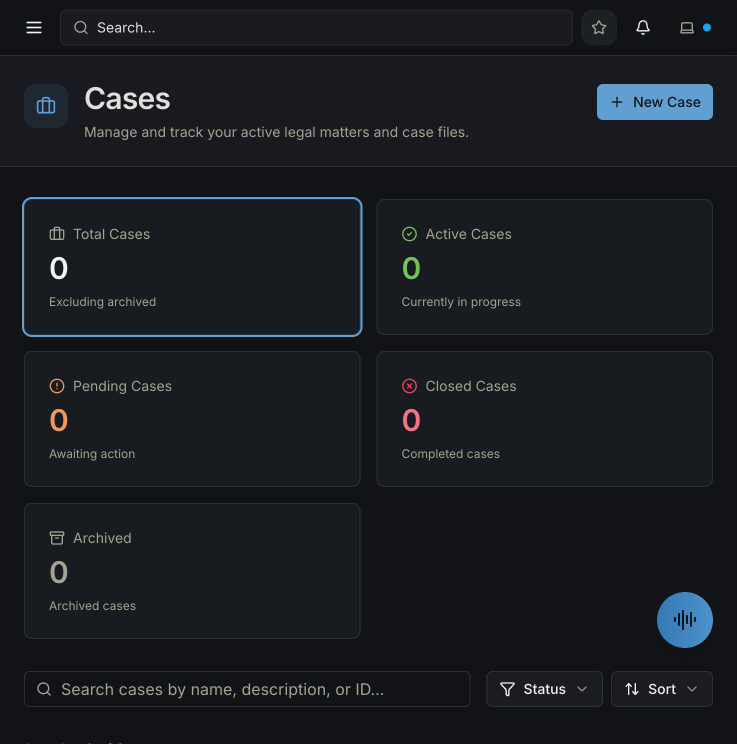
Below the summary cards, you can search cases by name, description, or ID, and filter by Status or sort the list by different criteria.
Creating a Case
Click + New Case from the Cases list, or use the Quick Actions shortcut from the Home dashboard.
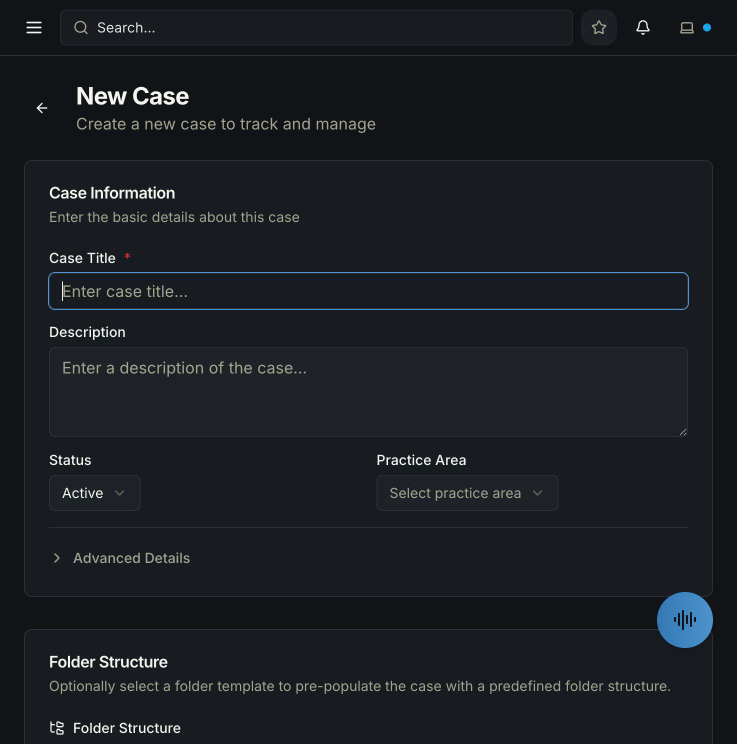
Required fields:
Case Title — the name of the matter (e.g. "Smith v. Holdings Ltd.")
Optional but recommended:
Description — a summary of the matter, visible inside the case and used by the AI when you ask it questions
Status — Pending / Active / Closed / Archived (defaults to Active)
Practice Area — classify the case by area of law:
Litigation
Corporate / M&A
Employment
Real Estate
Intellectual Property
Family Law
Criminal Defense
Immigration
Tax
Bankruptcy
Other
Advanced Details (expandable section):
Case Number — your internal reference (e.g. 2024-LIT-0042)
Billing Type — how the matter is billed
Currency — defaults to USD, adjustable
Case Value — financial value of the matter
Court / Tribunal Name
Jurisdiction
Opening Date and Closing Date
Folder Structure — at the bottom of the form, you can optionally apply a pre-configured folder template from Workspace Settings to automatically create a standard folder structure inside the case when it's created.
Inside a Case
Once a case is created, it opens into a dedicated workspace with a left-side tab navigation. Each tab serves a distinct purpose.
Dashboard
The default landing tab for every case. It contains:
Quick Actions bar — one-click shortcuts to the most common next steps: Ask AI, Comment, Task, Docs, Email, Calendar
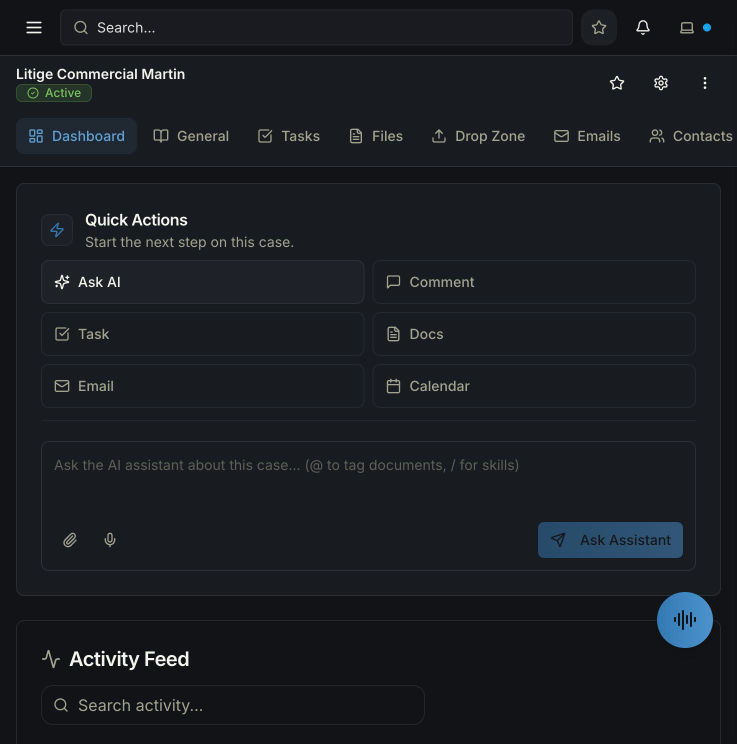
AI Chat box — ask the assistant anything about this specific case. Use
@to tag documents and/to trigger Skills (pre-built AI workflows)Activity Feed — a full chronological log of everything that has happened in this case, filterable by: All, Mentions, Cases, Documents, Files, Comments, Contacts, Events, Templates, Library, Emails, Folders
General
A structured overview of the case, containing:
Case summary — the description you wrote when creating the case, editable by double-clicking
Analyze Case button — runs an AI analysis of the entire case
Stats bar — shows number of documents, parties, and upcoming events at a glance
Case Parties — lists all contacts linked to this case with their role (Client, Opponent, Witness, etc.)
Upcoming Events — preview of the next calendar events for this matter
Tasks
A task list scoped to this specific case. Shows:
Total, Overdue, and Ongoing task counts
Table with: Task Name, Due Date, Assignee, Status
Toggle between Table and List views
Search and filter tasks
Tasks created here are also visible in the global Tasks section
Files
The document and file repository for the case. From here you can:
Create a new document from scratch (opens in the Whisperit editor)
Create a folder to organise files
Upload existing files from your computer
Connect Cloud Storage to pull files from Google Drive, OneDrive, or Dropbox
Search, sort, and switch between grid and list view
Bulk export selected files
Drop Zone
A secure file receiving link for external parties — clients, opposing counsel, notaries — to upload documents directly into this case without needing a Whisperit account.
You generate a unique upload link, share it with the external party, and any files they submit automatically appear in the case. You can optionally set a destination folder for incoming files.
This eliminates the back-and-forth of email attachments for document collection.
Emails
Once your email account is connected in Settings, this tab shows all email threads linked to this case. You can:
Read and reply to emails without leaving the case
Dictate responses using your voice
Have the AI draft replies for you
Link new incoming emails to the case manually
Contacts
All people and organisations associated with this case. Each contact card shows:
Name and role (Client, Gérant, Opposing Counsel, etc.)
Email and phone number
A tag indicating their role in this matter (e.g. "Client")
You can add existing contacts from your global Contacts list, or create new ones directly from this tab.
Calendar
All events and deadlines specific to this matter, separated into:
Upcoming — scheduled hearings, meetings, deadlines
Completed — past events
Cancelled — cancelled events
You can add events directly from this tab. Events created here are also visible in the global Calendar view, alongside events from all other cases.
Timesheets
Time tracking for billable work on this case. Shows:
Total Time logged on this case (all time)
This Week and This Month breakdowns
A list of individual time entries with descriptions
Log Time button to add a new entry manually
This feeds into billing reports and gives you a clear record of time spent per matter.
Case Settings & Actions
At the bottom of the case sidebar, two global actions are always accessible:
Case Settings — opens the full edit form to update any case field: title, description, status, practice area, case number, billing type, jurisdiction, dates, etc.
Archive Case — moves the case out of the active list into the Archived state. Archived cases are preserved and searchable but no longer appear in your main caseload.
Where Cases live in your workspace
Cases are stored in the Shared Vault — meaning they are accessible to all members of your workspace who have the appropriate permissions. This is different from My Vault, which stores personal documents only visible to you.
This distinction matters for teams: a case and all its contents (documents, contacts, tasks, emails) are collaborative by default, while personal draft documents and notes you're not ready to share stay private in My Vault.
———
Here are all the screenshots for each section of Cases, paired with their descriptions:
1. Cases Listbeta.whisperit
The main Cases page — your caseload overview. Shows the 5 summary stat cards (Total, Active, Pending, Closed, Archived), a search bar, and Status/Sort filters. The + New Case button lives in the top-right corner.
2. New Case — Basic Formbeta.whisperit
The case creation form. Fields visible: Case Title (required), Description, Status (defaults to Active), Practice Area dropdown, and the collapsible Advanced Details section. At the bottom, a Folder Structure section lets you apply a pre-built folder template.
3. New Case — Advanced Details expandedbeta.whisperit
When you expand Advanced Details, additional fields appear: Case Number, Billing Type, Currency, Case Value, Court / Tribunal Name, Jurisdiction, Opening Date, and Closing Date.
4. Case — Dashboard tabbeta.whisperit
The default tab when you open a case. Contains Quick Actions (Ask AI, Comment, Task, Docs, Email, Calendar), the AI chat box for case-specific questions, and the Activity Feed below it.
5. Case — General tabbeta.whisperit
The case overview: the case summary text (double-click to edit), an Analyze Case AI button, a stats bar (documents, parties, events), the Case Parties section with linked contacts, and a preview of Upcoming Events.
6. Case — Tasks tabbeta.whisperit
Task management scoped to this case. Shows Total / Overdue / Ongoing counters, a search bar, Filters and Sort options, and a task table with columns for Task Name, Due Date, Assignee, and Status.
7. Case — Files tabbeta.whisperit
The document and file repository. Action buttons: + New (create a document in the editor), New Folder, Upload, and Connect Cloud Storage. Includes search, sort, and multiple view toggle options.
8. Case — Drop Zone tabbeta.whisperit
Lets you generate a secure upload link to share with external parties (clients, counterparts) so they can submit files directly into this case — no Whisperit account required.
9. Case — Emails tabbeta.whisperit
Shows email threads linked to this case. Includes a Send Email button and a Refresh button. When no email is connected yet, it displays "No emails linked" with instructions to link from the Mails section.
10. Case — Contacts tabbeta.whisperit
All contacts associated with this case. Shows name, role, and contact details. The + Add Contact button lets you link existing contacts or create new ones directly.
11. Case — Calendar tabbeta.whisperit
All events and deadlines for this matter. Note the 1 overdue badge — events that have passed their scheduled date are flagged in red. Includes an + Add Event button for scheduling new hearings, meetings, or deadlines.
12. Case — Timesheets tabbeta.whisperit
Time tracking for this matter. Three summary tiles: Total Time, This Week, This Month. Below, a Time Entries section with a + Log Time button to add billable hours manually.
13. Case Settings / Edit Casebeta.whisperit
Accessible via the gear icon (⚙) in the top-right of any case. Opens the full edit form — same fields as case creation — allowing you to update any detail at any time. The Update Case button saves changes.
All 12 sections are fully captured and documented. Ready to move on to the next section whenever you are.
Was this helpful?
Still need help? Ask the team