Configuring your microphone
Learn how to configure your microphone for optimal voice dictation
Last updated 5 months ago
Audio Settings Overview
Proper audio configuration is essential for effective voice dictation in Whisperit. The Microphone Settings page allows you to select and configure your microphone to ensure clear recording and playback.
Configuring Your Microphone
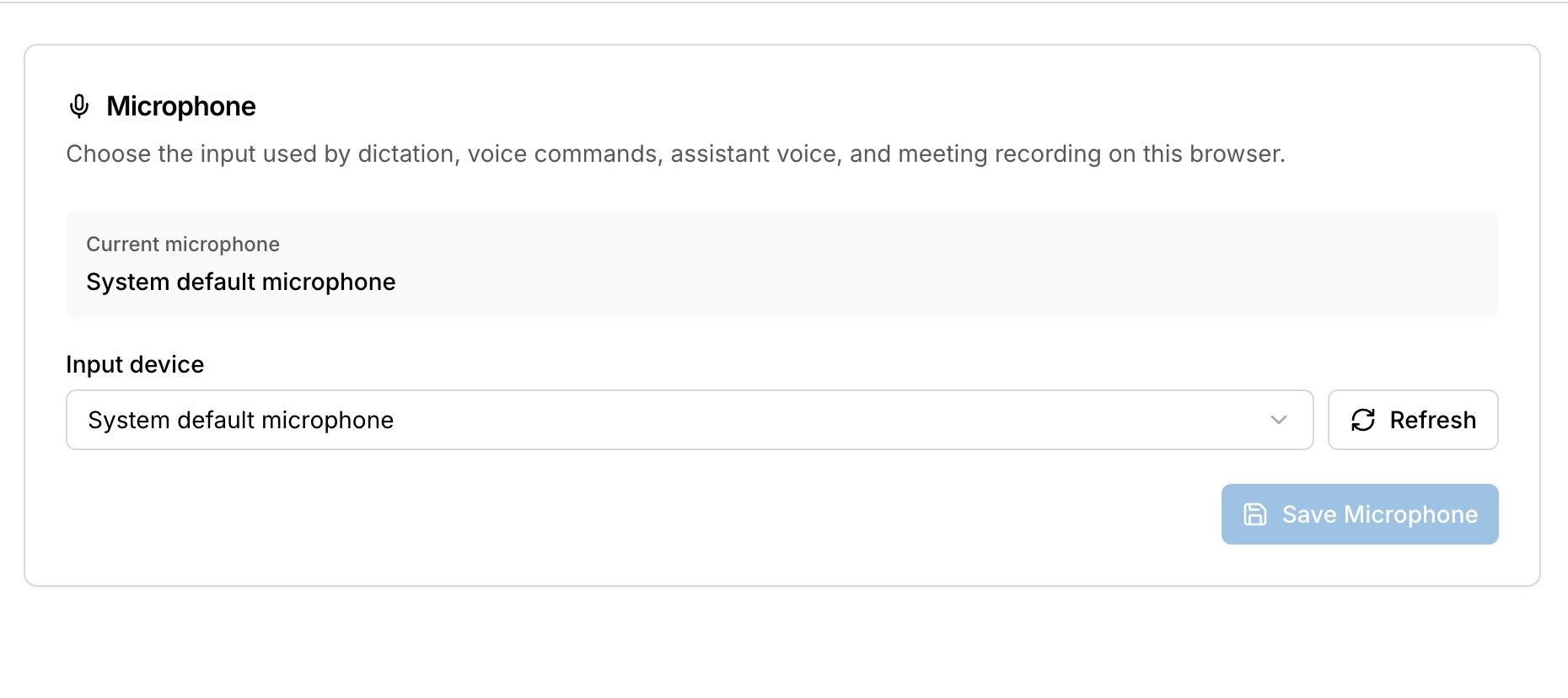
Selecting Your Microphone:
Go to Settings > Microphone
Click on the Input device dropdown to see all available microphone devices
Select your preferred microphone from the list
Your selection will be saved automatically
Testing Your Audio Configuration
After Configuration:
• Test your microphone by using voice input in a document
• Speak a few sentences to verify recording quality
• Listen to any audio playback to test speaker output
• Adjust volume levels if needed on your device/ computer settings
Troubleshooting Audio Issues:
• If microphone isn't listed: Check physical connection and system settings
• If speakers aren't working: Verify output device in system settings
• Refresh the page if devices don't appear
• Restart browser if problems persist
Browser Permissions
Microphone Permissions:
• Whisperit needs microphone access for voice input
• Grant permission when prompted by your browser
• Check browser settings if permission was denied
• Look for microphone icon in browser address bar
Managing Permissions:
• Chrome: Settings > Privacy > Site Settings > Microphone
• Safari: Preferences > Websites > Microphone
• Firefox: Preferences > Privacy & Security > Permissions
Was this helpful?
Still need help? Ask the team