Account Settings
Settings is where you make Whisperit yours.
Last updated 6 months ago
Why Settings matter
Before creating your first case or dictating your first document, spending two minutes in Settings ensures that everything the platform generates, documents, AI replies, email drafts, summaries, is calibrated to how you actually work.
Think of it as briefing your assistant before they start. The more context you give, the less correcting you'll have to do later.
Settings is split into two areas:
Personal Settings — controls your individual experience: your profile, the way the interface looks, how the AI speaks to you, and which external accounts or tools you've connected.
Workspace Settings (for workspace owners). — controls the shared environment for your entire team (members, roles, templates, billing). Only workspace owners and admins can manage this.
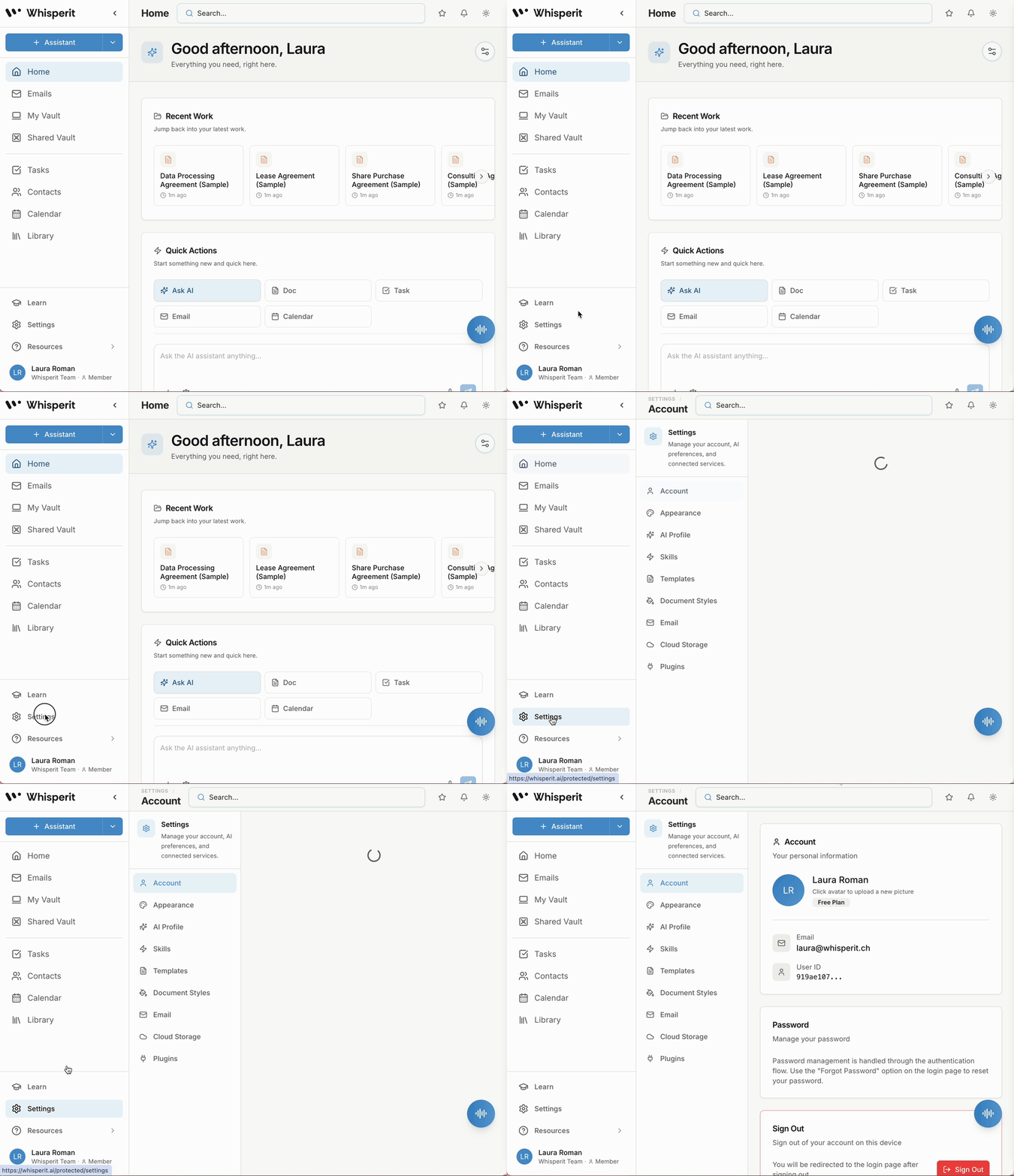
To access your personal Settings, click Settings in the left sidebar.
Account
This is your profile page. Here you can:
Upload a profile photo
See the email address tied to your account
View your User ID (useful if you ever need to contact support)
See your current plan (Free, Pro, etc.) - coming soon
Sign out of your account
Your name and email are visible to other members of your workspace, so keep them accurate. If you need to change your display name on the app, please contact support.
Appearance
Controls the visual theme of your interface. You can choose between Classic, Warm, and Focus, independently of whatever theme your workspace admin has set as the default. Your preference here only affects your own view.
AI Profile — The most important setting you'll configure
This is the section that most users skip and then wonder why AI outputs feel generic. Don't skip it.
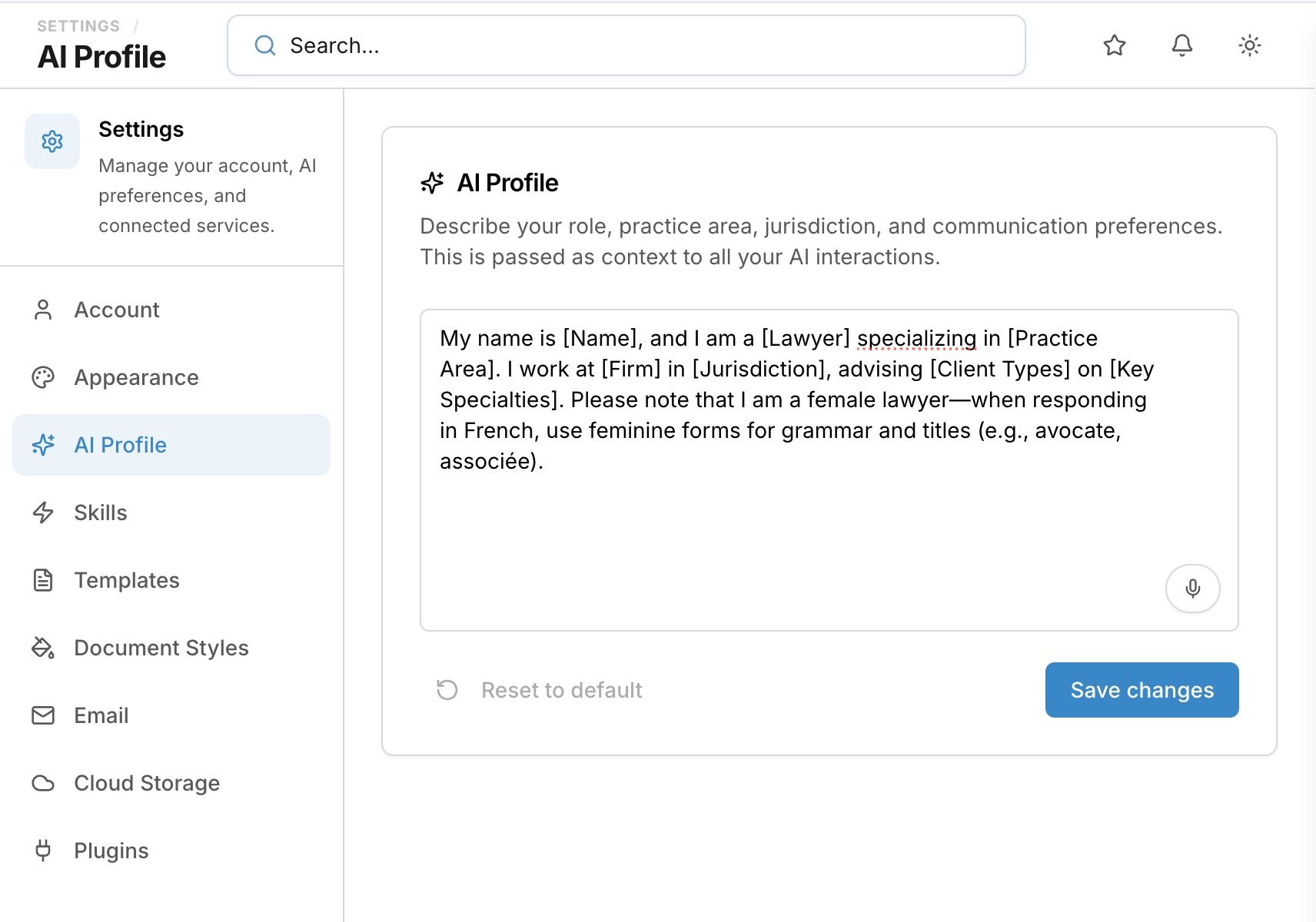
Personal Assistant Context
This is a free-text field where you describe yourself to the AI. Every time you use the AI assistant — whether you're dictating a document, asking for a draft, running a Skill, or generating a case summary — this context is automatically passed alongside your request.
The prompt shown by default gives you the structure: describe your name, your role, your practice area, your jurisdiction, and any communication or formatting preferences you have.
A well-written AI context looks like this:
"My name is [Name], and I am a [role] specialising in [practice area]. I work at [firm name] in [city/country]. When generating content, use formal legal language in [language]. Prefer concise paragraphs and numbered clauses in contracts. Always include a signature block."
The more specific you are, the more accurate and usable every AI output will be — from the first word.
Why this matters in practice:
Without context: the AI drafts a generic letter with no jurisdiction, no formatting style, and no sense of who the sender is.
With context: the AI knows you're a litigation lawyer in Switzerland, drafts in the correct formal register, and structures the output the way you'd expect it.
You can edit this field at any time, and changes apply immediately to all future AI interactions. There's also a Reset to default button if you want to start over.
The field also supports voice input — click the microphone icon to dictate your context instead of typing it.
Personal AI Provider Instances (Coming soon)
This is an advanced feature for users or firms who want to connect their own AI model instead of (or in addition to) Whisperit's default.
If your firm has a private deployment of an OpenAI-compatible model, for data residency, compliance, or cost reasons, you can add it here as a Provider Instance. You can configure multiple instances, set a default route, and keep inactive configurations as fallbacks.
For most individual users, this section can be left empty. Whisperit's built-in AI will handle all requests by default.
Connect your Gmail, Outlook, or IMAP account to bring your inbox into Whisperit. Once connected, you'll be able to:
Read and manage emails without leaving the platform
Link email threads directly to cases
Dictate email replies using your voice
Let the AI draft responses for you
This is optional but strongly recommended if email communication with clients or opposing parties is part of your daily workflow.
Cloud Storage
Connect Dropbox, Google Drive, OneDrive, or another supported cloud storage provider. Once connected, files from your cloud storage can be attached to cases and documents directly within Whisperit — without needing to download and re-upload them.
Export Plugins
Configure how your documents are exported when you use the Export function inside the document editor. You can connect plugins that control where exported PDFs or DOCX files are sent — for example, directly into a case management system or document archive.
Where to go next
Once your Settings are configured, you're ready to create your first case. Head to My Vault in the sidebar to get started.
Was this helpful?
Still need help? Ask the team